Shopping
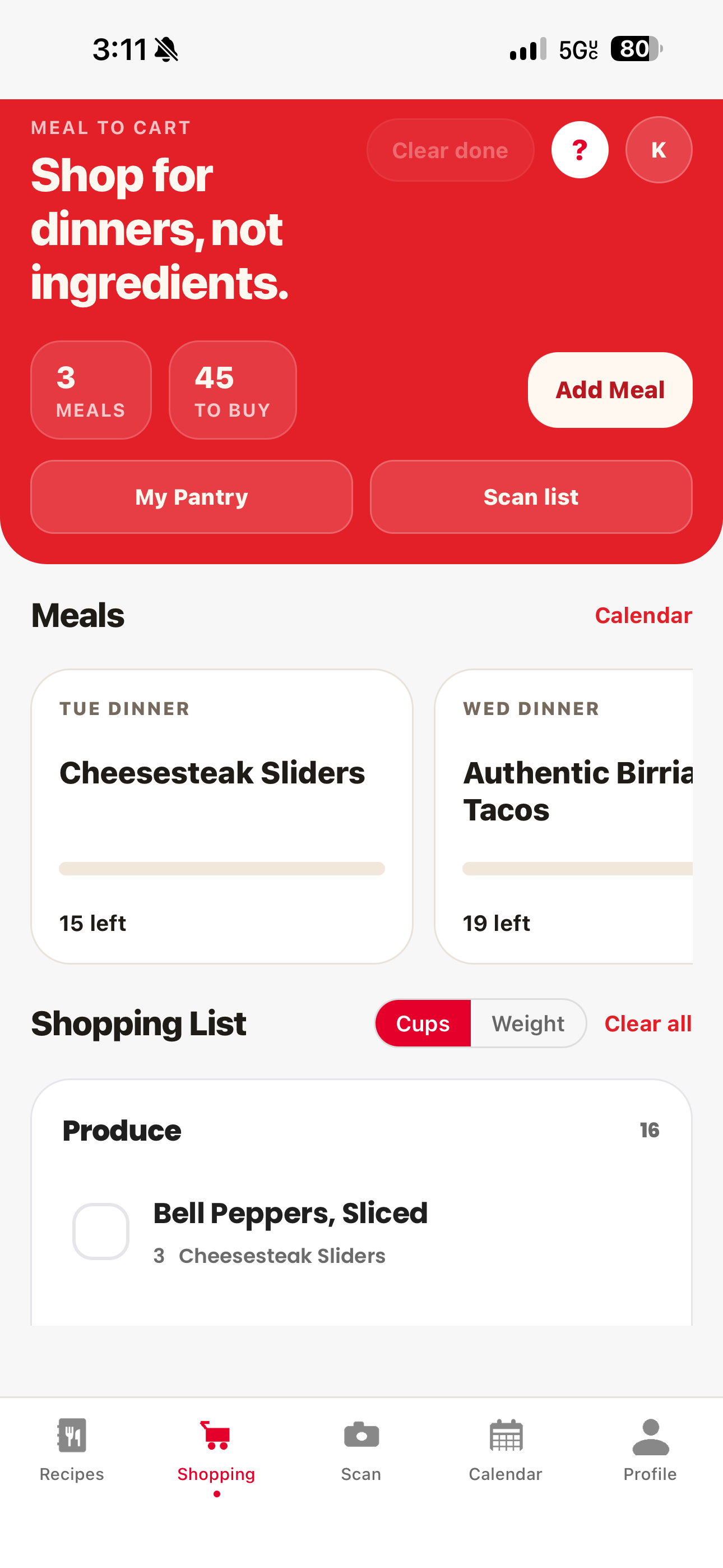
The Shopping tab builds a shopping list from recipes and nearby planned meals.
Add a recipe from the recipe screen
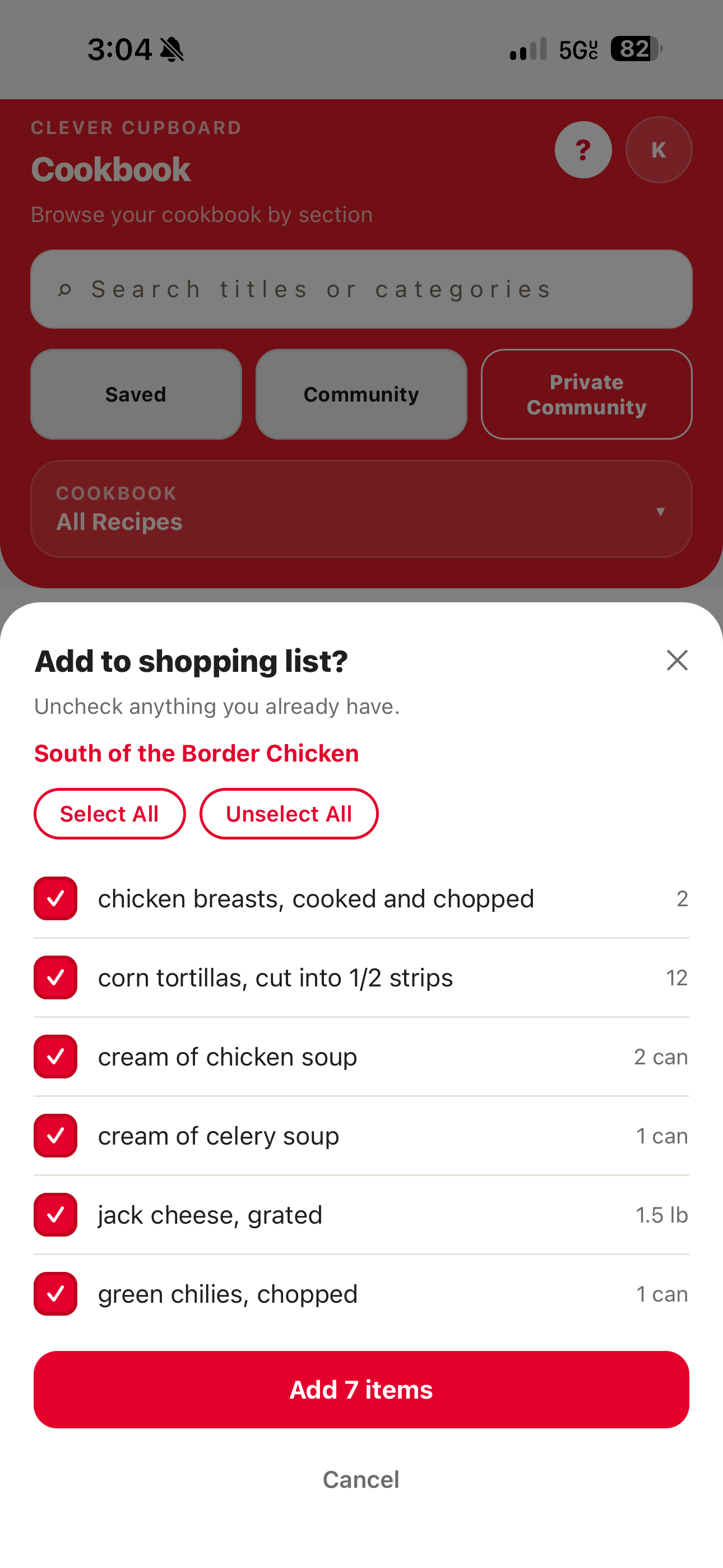
- Open a recipe.
- Tap Add missing to shopping list.
- Uncheck anything you already have.
- Tap Add.
Clever Cupboard sends the selected ingredients to the Shopping tab.
Add meals from Shopping
- Go to the Shopping tab.
- Tap Add Meal.
- Choose Saved, Communities, or Private Communities.
- Tap a recipe to add or remove it from the list.
- Tap Done.
The recipe picker shows whether each recipe is selected and how many ingredients it has.
Use planned meals
Ingredients from nearby planned meals can appear in Shopping. Use the Calendar link in Shopping to review planned meals.
Shop the list
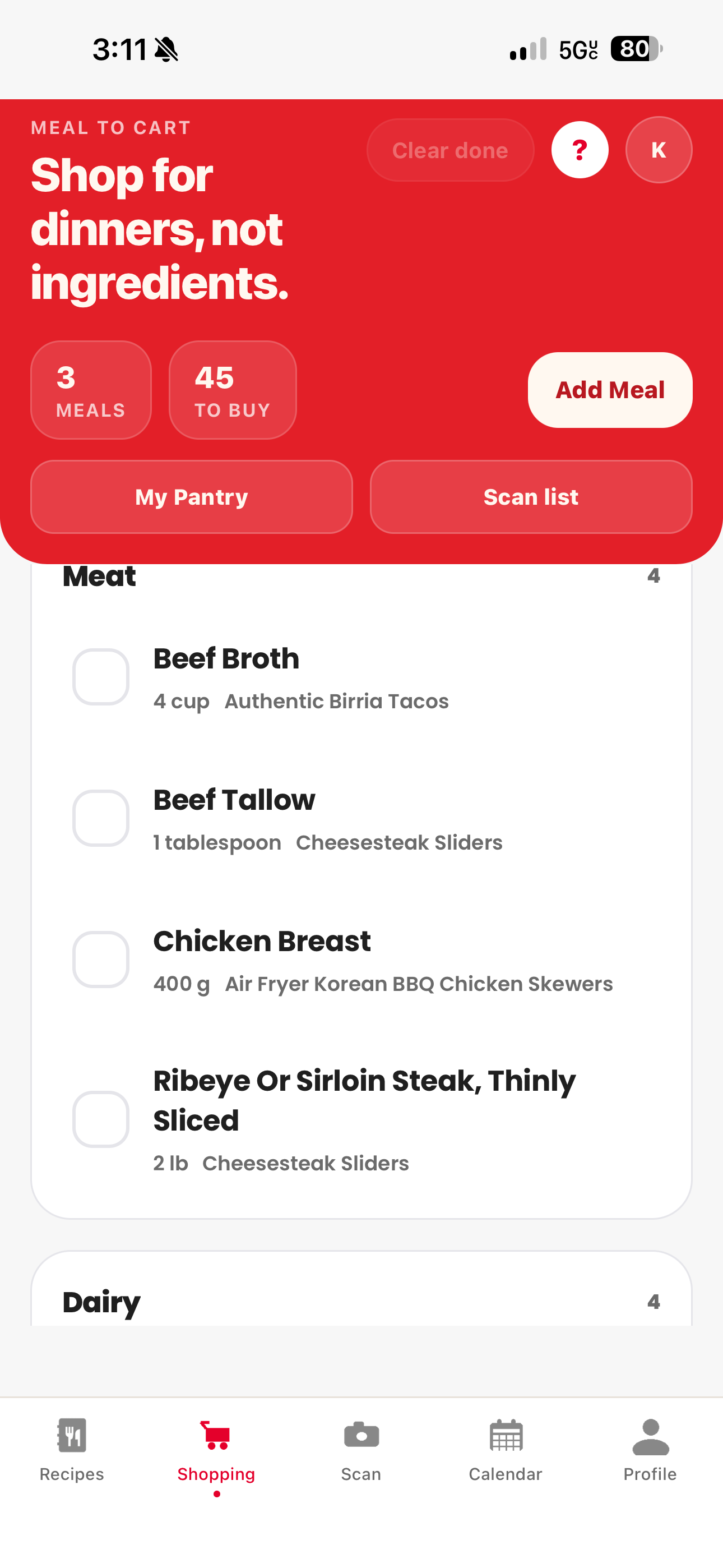
Shopping groups items by grocery section, such as Produce, Meat, Dairy, Dry Goods, Frozen, and Snacks.
Tap an item to mark it picked up. Picked-up items move to the Picked Up section. Tap a picked-up item again to put it back on the active list.
When the same ingredient appears more than once, Clever Cupboard shows one shopping item and combines matching quantities when it can.
Clear items
- Tap Clear done to remove picked-up items.
- Tap Clear all to clear the whole shopping list.
- Tap Undo in the banner if you need to restore the last clear.
What happens next
Your shopping list is saved with your account data. If Shopping cannot sync a change, Clever Cupboard shows an error and keeps the previous list available.
See also Groups and Sharing Recipes for community recipes you can add to Shopping.