Import a Recipe
Clever Cupboard can import a recipe from a website link, a photo, or a social media post. Import works best when the source includes clear, written ingredients and instructions.
Import from a website link
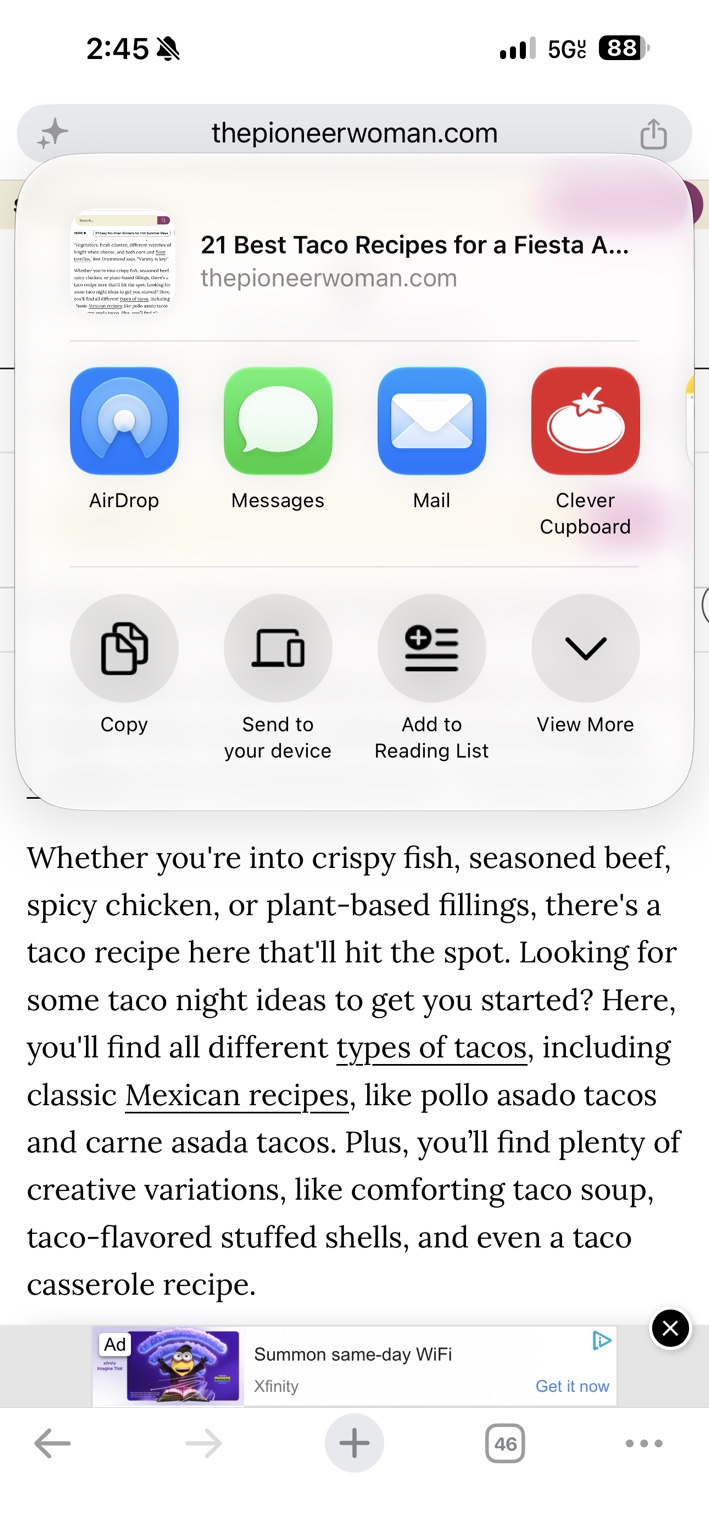
- Copy the recipe website link.
- Open Clever Cupboard.
- Go to Recipes and tap Add Recipe.
- Tap Import.
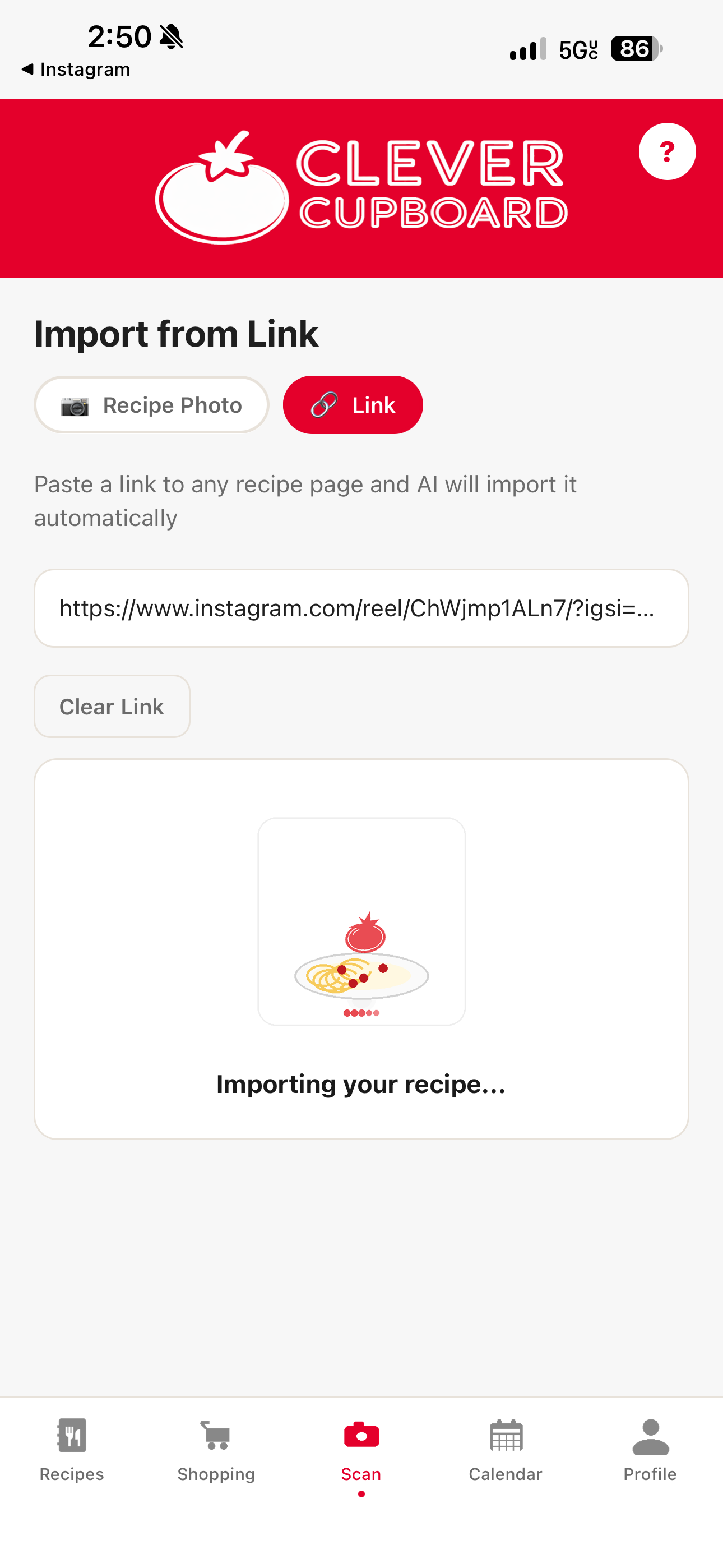
- Choose the Link tab.
- Paste the web address and tap Import.
- Review the recipe and tap Save Recipe.
Import from a photo
Good for printed recipes and handwritten recipe cards.
- Open Clever Cupboard and go to Recipes.
- Tap Add Recipe, then tap Import.
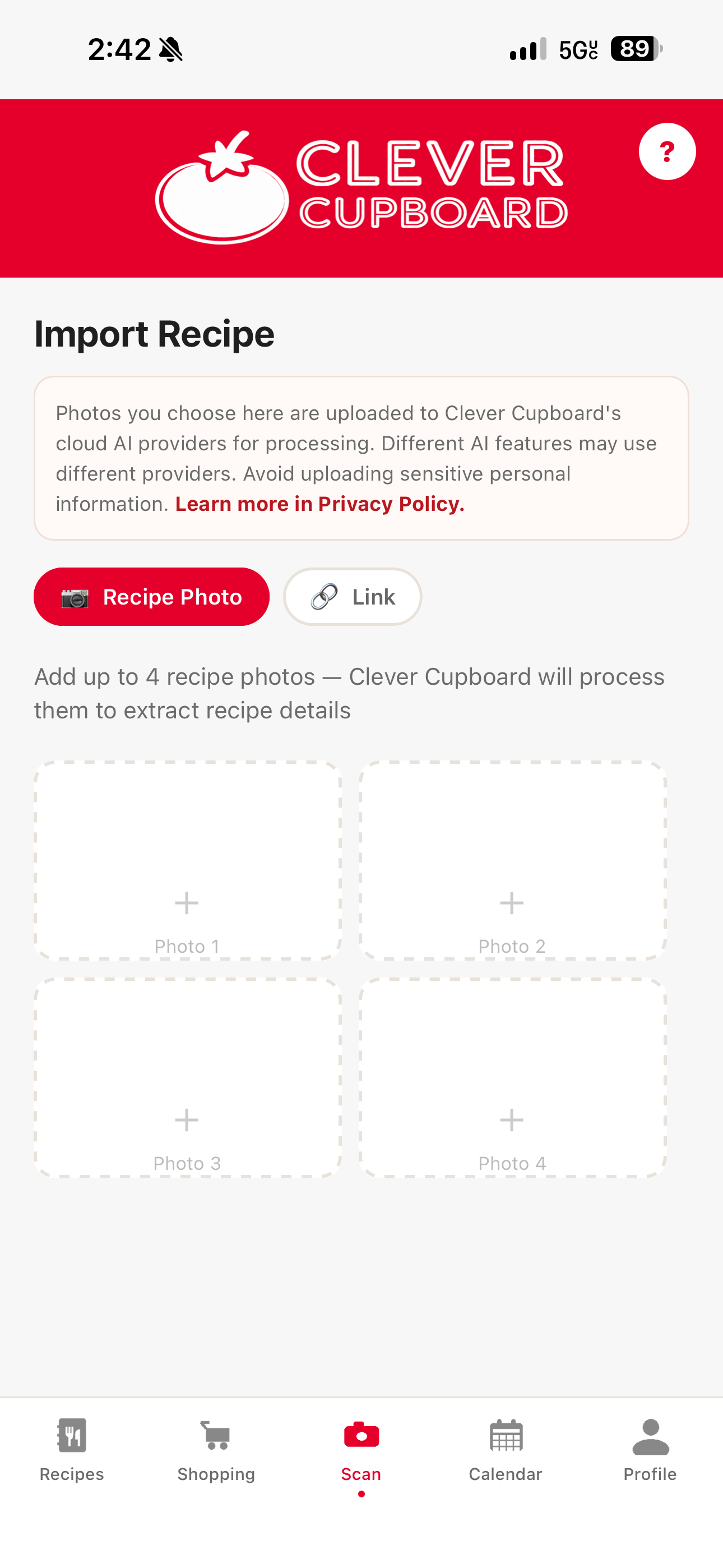
- Choose the Recipe Photo tab.
- Take a photo, or choose one from your phone.
- Review the recipe details and fix anything that looks off.
- Tap Save Recipe.
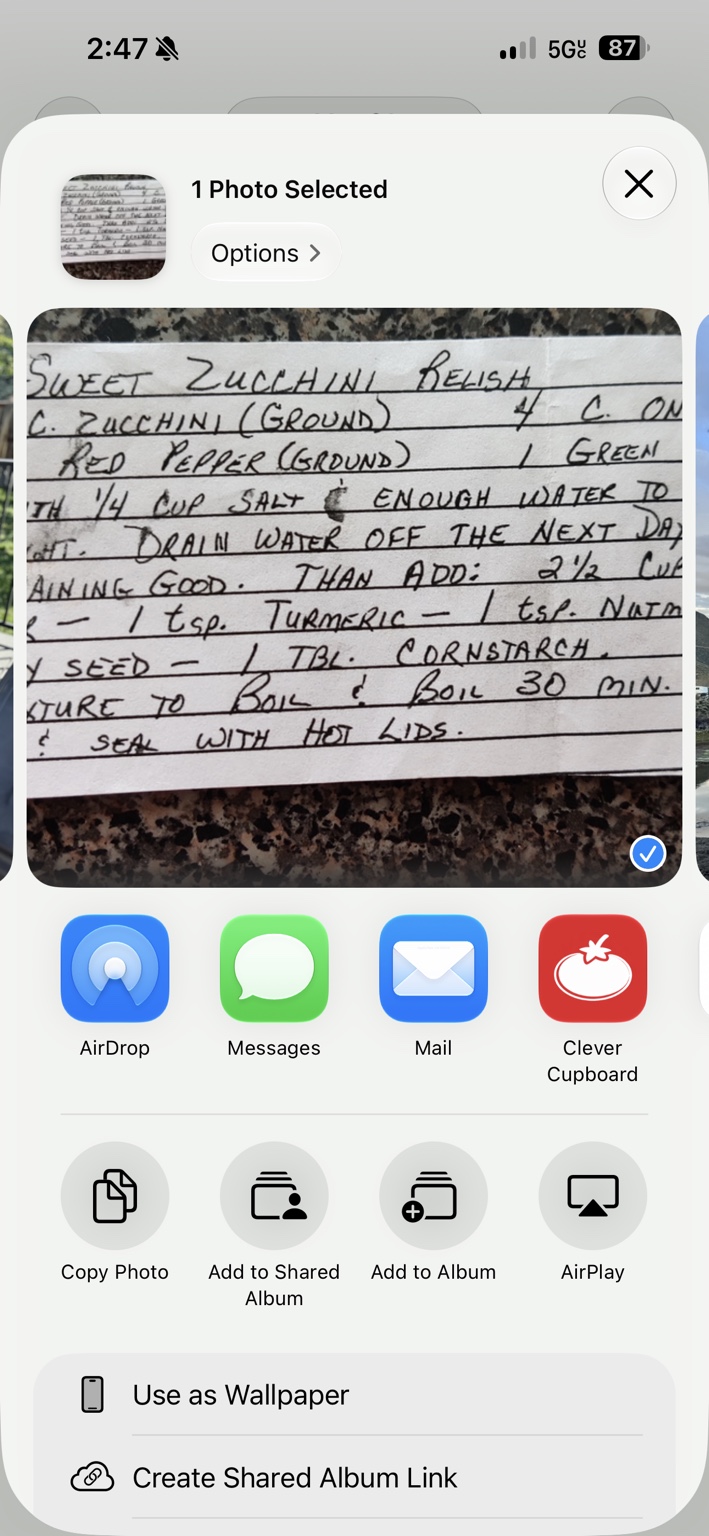
For best results, use a bright, clear photo where the writing is easy to read.
Import from a social media post
Clever Cupboard can import recipes from many Instagram, TikTok, Facebook, and Pinterest posts, but not every post will work. It works best when the post includes written ingredients, amounts, and instructions. If the recipe is only in a video, only spoken out loud, hidden in comments, private, or missing the full recipe, the import may be incomplete.
Instagram or TikTok
- Open the recipe post or video.
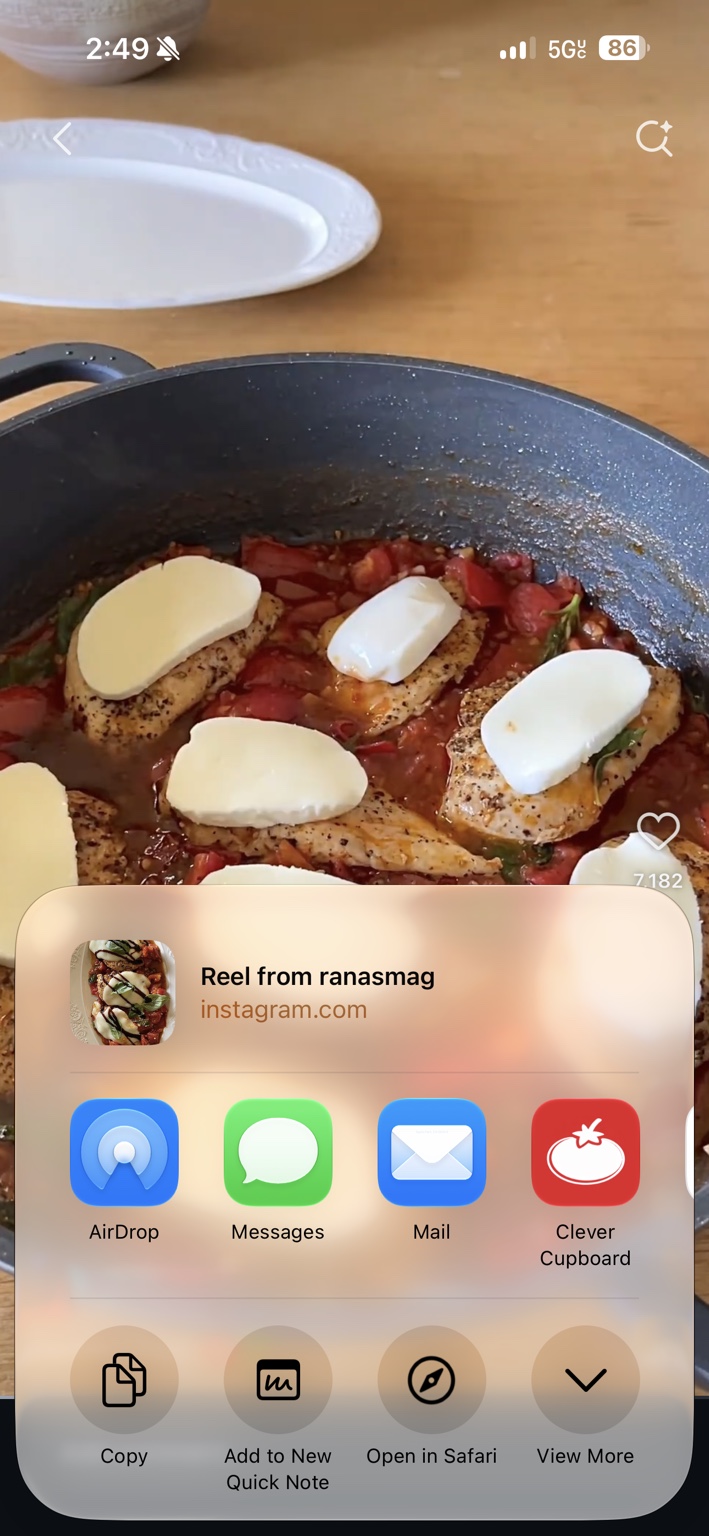
- Tap the share/send button.
- Tap More (on Instagram, tap Share to, then More).
- Choose Clever Cupboard from the app list.
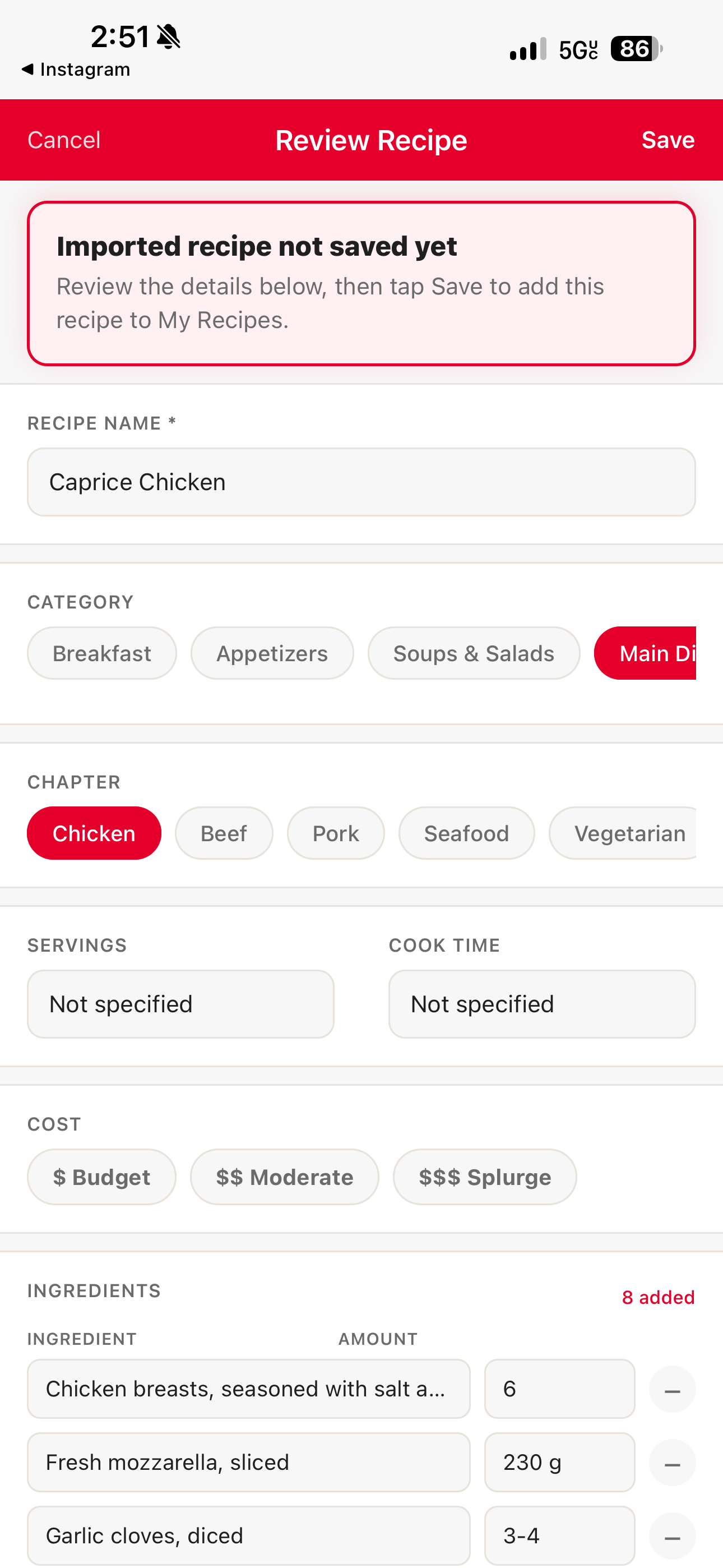
- Wait for Clever Cupboard to import the recipe.
- Review the recipe and tap Save.
- Open the Facebook recipe post.
- Tap Share.
- Choose Clever Cupboard.
- Review the recipe and tap Save.
Facebook posts that link to an outside recipe website usually work best. If the recipe is in a photo or graphic, save the image and use Recipe Photo instead.
Pinterest links may not import directly. The most reliable method is to open the original recipe website from the pin.
- Open the pin in Pinterest.
- Tap the link that goes to the original recipe website.
- Copy that website link.
- Open Clever Cupboard, tap Add Recipe, then Import.
- Paste the link in the Link tab and tap Import.
What if the import misses something?
That can happen, especially with short posts, blurry photos, or recipes that are missing details.
Before saving, tap any field to correct the recipe name, ingredients, amounts, or instructions.
If a social media recipe doesn't import at all, try one of these:
- Copy and paste the caption or post text into Clever Cupboard.
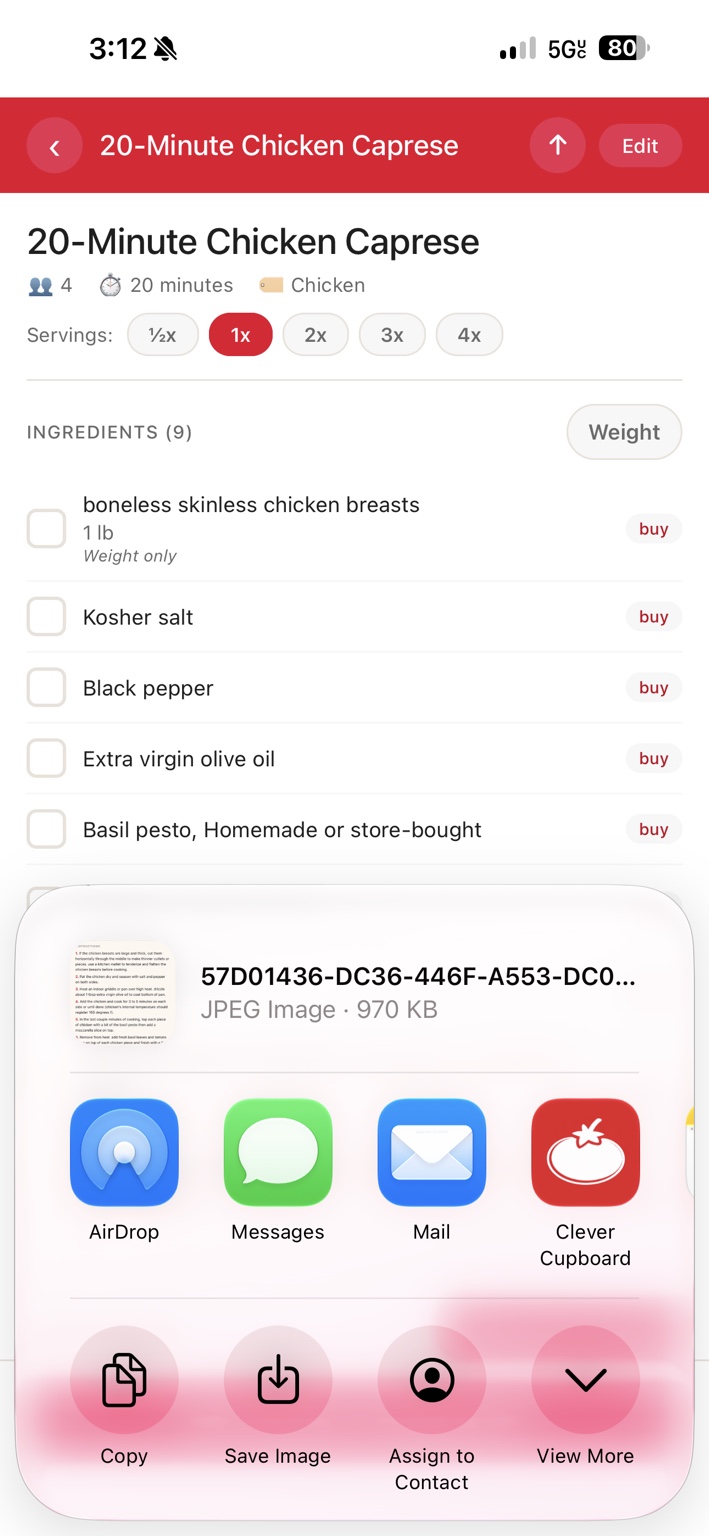
- Take a screenshot of the recipe and use Recipe Photo.
- Look for a link to the original recipe website and import that link instead.
- Save the recipe and edit any missing details before cooking.
What happens next
Your imported recipe is saved to your recipe library. See Save and Edit Recipes to make changes later.