Groups
In the app, use Communities for group sharing.
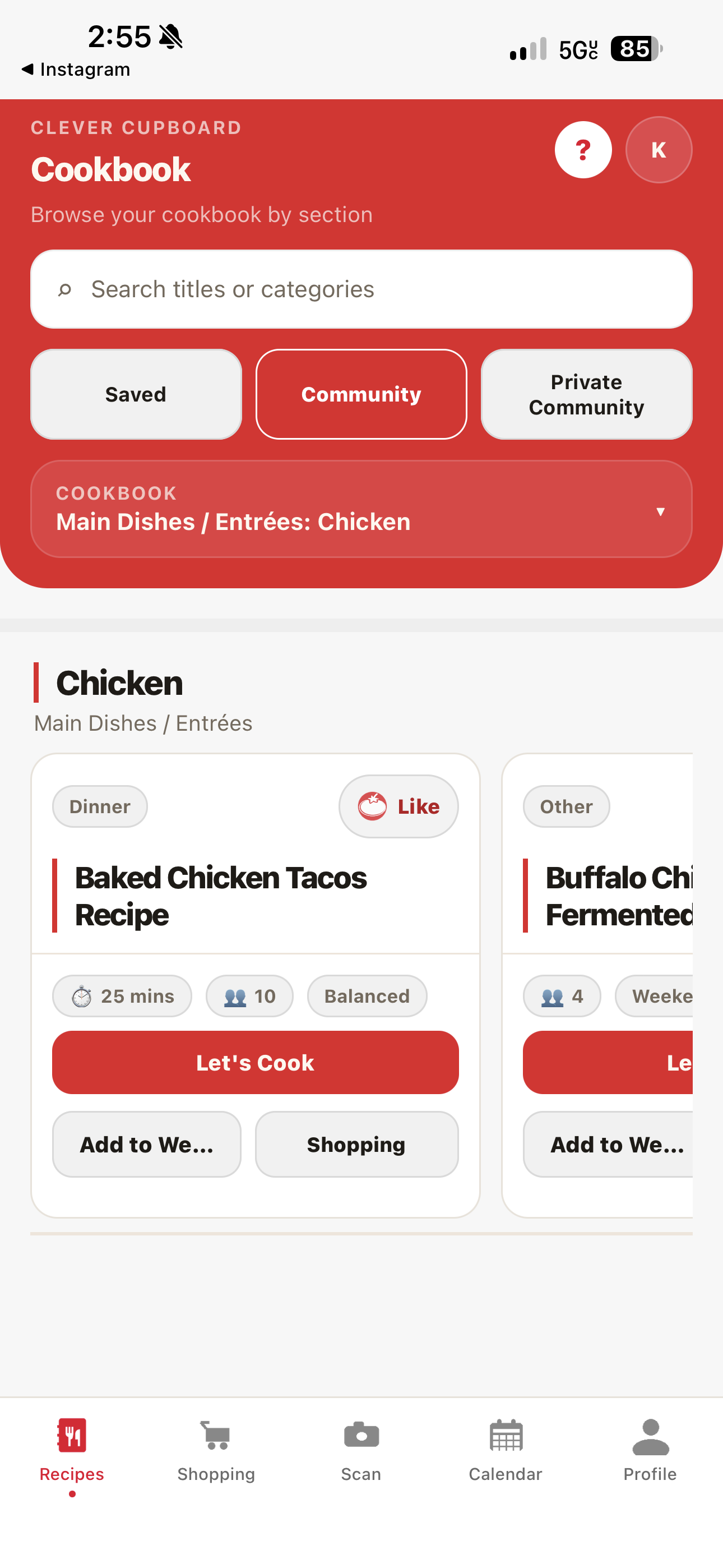
Create a community
- Open Profile.
- Tap Communities.
- Tap Create Community.
- Enter a community name.
- Add an optional description.
- Turn on Private Community if needed.
- Tap Create Community.
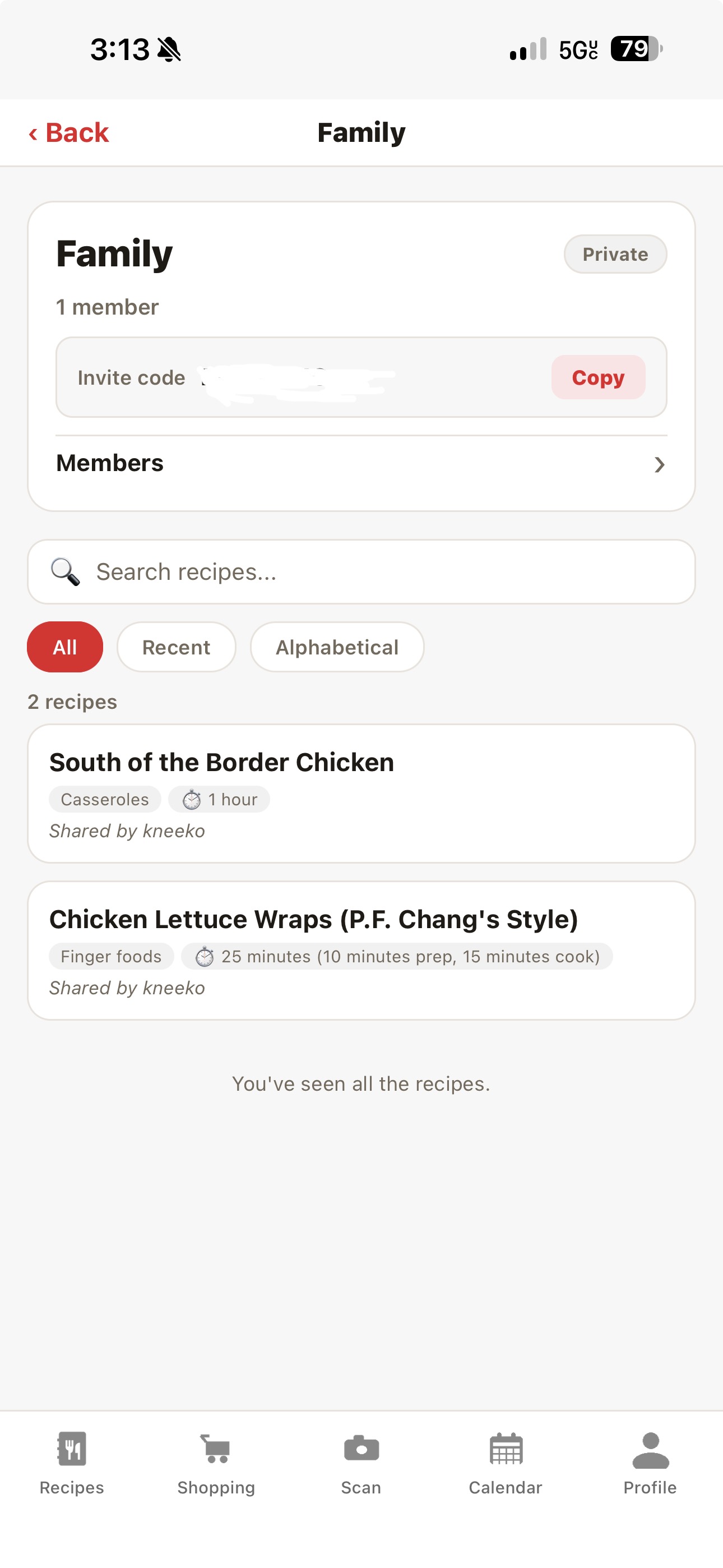
After creation, Clever Cupboard shows an invite code you can copy and share.
Join a community
- Open the Profile tab.
- Tap Communities.
- Tap Join Community.
- Enter the 8-character invite code.
- Tap Join Community.
If you are already a member, Clever Cupboard tells you instead of joining again.
View shared recipes
Open a community from the Communities list to see recipes shared there. A community page can show:
- the community name;
- whether it is public or private;
- the member count;
- the description, if one was added;
- recipes shared by members;
- a Members row.
Owners and admins can see the invite code when one is available.
Manage members
Open a community, then tap Members.
Community member actions depend on your role:
- Owners can make members admins, remove admin roles, remove members, and delete the community.
- Admins can remove members.
- Members can leave a community.
Deleting a community removes the shared recipes from that community. Your saved recipes are not affected.
Browse private community recipes
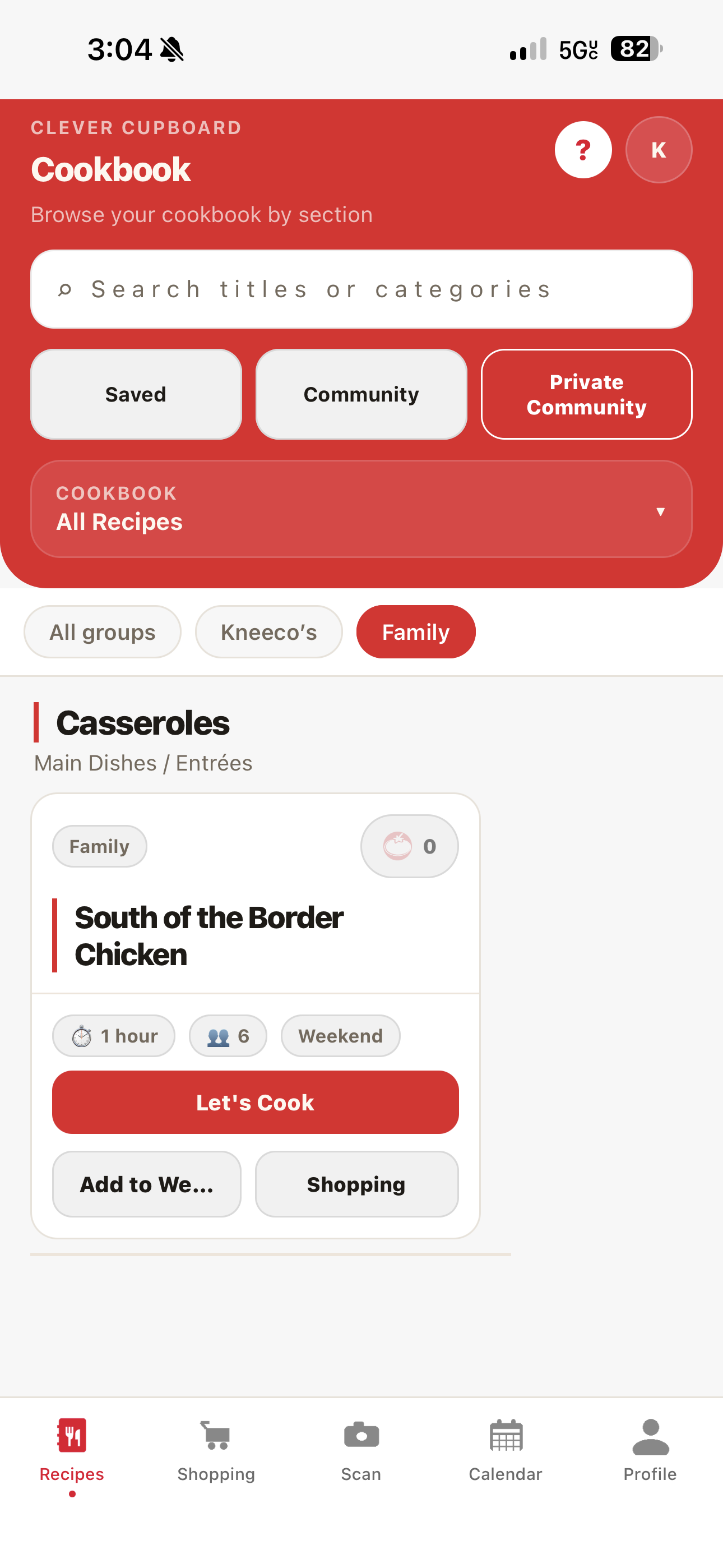
Private community recipes also appear in the Recipes tab under Private Community. If you belong to more than one private community, use the group pills to show All groups or one community at a time.
What happens next
After you create or join a group, you can share saved recipes with it. See Sharing Recipes.