Frequently Asked Questions
For step-by-step instructions, see the task pages linked from each answer below.
Can I use the app without an account?
You can browse community recipes without an account. To save recipes, plan meals, or build shopping lists, you'll need a free Clever Cupboard account.
What is the Community section?
Community is where Clever Cupboard users can share recipes with other users. You can browse community recipes and save the ones you like to your own recipe library.
What is a private community?
A private community is a group where invited members can share recipes with each other. Only members of that private community can see the recipes inside it. See Groups.
How do I share one of my recipes?
Open a saved recipe and tap the share button to send a Clever Cupboard recipe link, or tap Share to Community to share it with a community you belong to. See Sharing Recipes. Only share recipes you have the right to share — see our Terms & Conditions.
How does the meal calendar work?
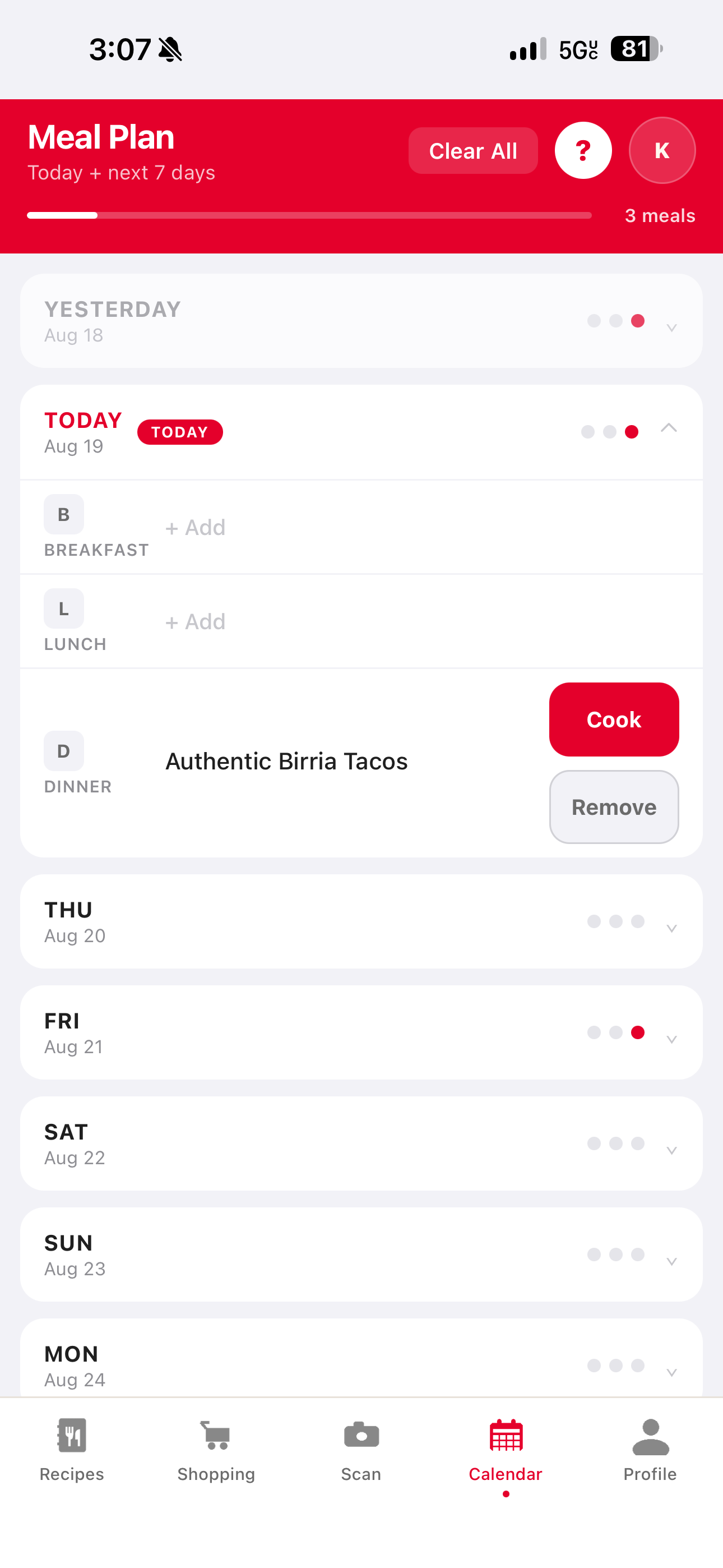
Use the Calendar tab to plan meals for the week. Open a recipe and tap Add to Calendar, choose the date and meal slot, then confirm. To remove a planned meal, open the Calendar tab, tap the meal, and choose Remove from Calendar.
Can I add planned meals to my shopping list?
Yes. After you plan meals, Clever Cupboard can show the nearby planned meal ingredients in your shopping list so you know what to buy. Review the list before shopping and clear anything you have already picked up.
How do I add a recipe to my shopping list directly?
Open a recipe and tap Add missing to shopping list, or open Shopping and tap Add Meal. You can choose which ingredients to add.
Can I add shopping list items by hand?
The current Clever Cupboard shopping flow builds the list from recipes and planned meals. Manual item entry is not shown in the main Shopping tab documented here.
How do I check off items while shopping?
Tap an item to mark it as collected. Checked items move to Picked Up until you clear them.
What's included in Clever Cupboard Pro?
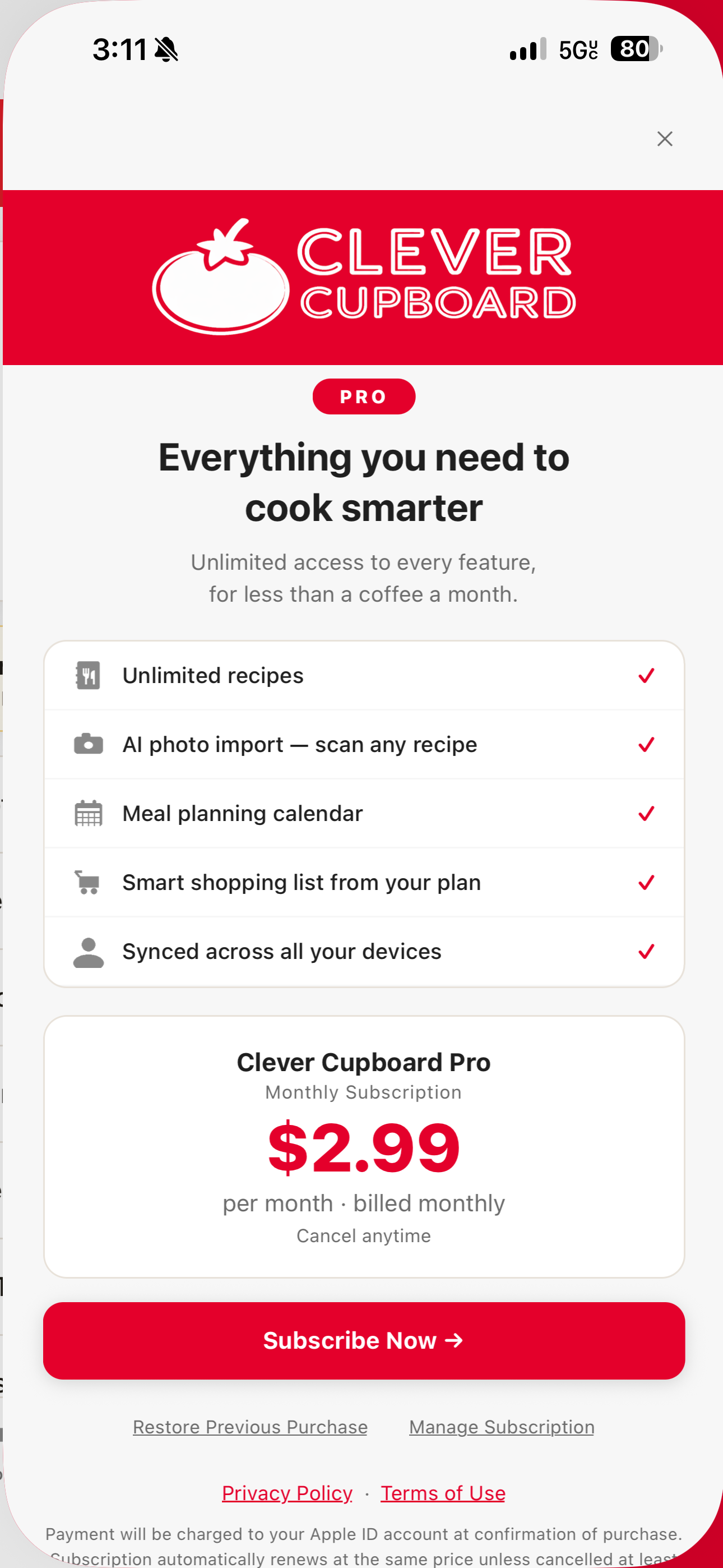
Clever Cupboard Pro includes more recipe imports, advanced scanning features, meal planning, shopping list tools, and premium features as they're released. Current pricing and plan details are shown in the app before you subscribe.
How do I cancel my subscription?
Subscriptions are managed by Apple:
- Open the Settings app on your iPhone or iPad.
- Tap your name at the top, then tap Subscriptions.
- Tap Clever Cupboard Pro.
- Tap Cancel Subscription.
You keep Pro access until the end of the paid period.
How do I restore my subscription after reinstalling?
Open Clever Cupboard, go to the Upgrade screen, and tap Restore Purchases. Use the same Apple ID you used when you subscribed.
How do I delete my account?
In the app, go to the Profile tab, scroll to the bottom, and tap Delete Account. Deleting your account permanently removes your recipes, meal plans, and shopping lists.
Didn't find your answer?
See Getting More Help.